The short answer
If your PC is still running an old spinning hard drive, upgrade to an SSD. The difference in everyday speed is dramatic — Windows boot times go from 60–90 seconds down to under 15. Programs open instantly. Files copy in a fraction of the time. An SSD upgrade is the most cost-effective performance boost available for any computer made in the last decade.
That said, HDDs still have a place — particularly for bulk storage. Here's how they actually compare.
Speed
This is where SSDs win decisively. A typical 2.5" SATA SSD reads and writes at around 500MB/s. An NVMe SSD (the M.2 type that plugs directly into your motherboard) runs at 3,000–7,000MB/s. A standard 7200rpm hard drive manages around 100–150MB/s on a good day.
In real-world use that gap means:
- Windows loads in seconds instead of minutes
- Large files (photos, videos) copy much faster
- Programs and games launch noticeably quicker
- The computer feels more responsive throughout
Reliability
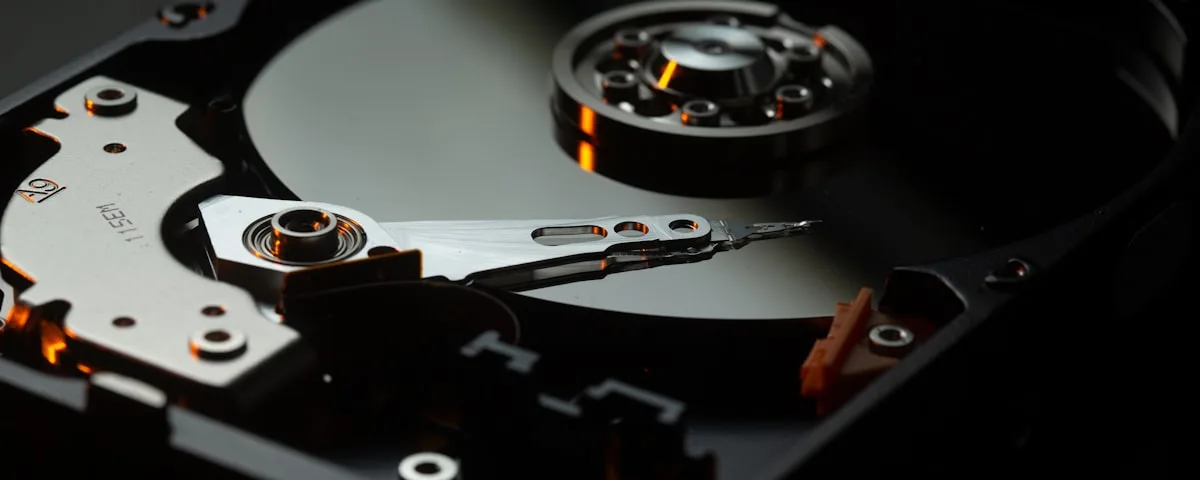
Hard drives have moving parts — a spinning platter and a read/write head on an arm. Drop a laptop, or knock a desktop while it's running, and that head can scratch the platter. Data gone. SSDs have no moving parts at all, making them far more resistant to physical shock.
HDDs also fail more often from general wear. The average hard drive lifespan is 3–5 years. Quality SSDs typically last 5–10 years under normal use. Both can fail without warning, which is why backups matter regardless of what storage you use.
Price and capacity
HDDs are still cheaper per gigabyte. You can get a 4TB hard drive for under $150. A 4TB SSD costs significantly more. For storing large media libraries — thousands of photos, video archives, old files you rarely touch — a high-capacity HDD remains practical.
For the operating system and your active programs, though, there's no competition. A 500GB or 1TB SSD is now affordable enough ($60–$120 for a quality drive) that there's little reason to run Windows from a spinning disk.
Noise and heat
Hard drives make noise. You can hear them spin up, seek, and write. SSDs are completely silent. HDDs also generate more heat — not usually a problem in a desktop with good airflow, but worth knowing in a compact laptop.
The best setup for most people
If your PC has only one drive bay, install an SSD and use cloud storage or an external drive for anything you don't use regularly.
If your desktop has two bays, the ideal setup is an SSD for Windows and your programs, and a large HDD for storage. You get speed where it matters and cheap capacity for everything else.
Laptops: SSD only
If you're buying a laptop or upgrading one, SSD is the only sensible choice. The slim form factor doesn't accommodate most large HDDs, and the shock resistance of an SSD is important for a device that travels with you. If your laptop still has a hard drive, it's almost certainly the reason it feels slow.
Thinking about upgrading?
We can clone your existing drive to a new SSD — your Windows install, programs, and files transfer across with no reinstall needed. Most upgrades are done same day.
Book a Drop-Off